
Before you can accept orders, the Yukser team verifies your details.
What we check
- A clear KTP photo, with your data read automatically
- A selfie that we automatically match against your KTP photo, to confirm the KTP is yours
- An active phone number
- Basic history we have access to
Verification status
On your profile you will see one of the following statuses:
- Awaiting verification, your documents are being reviewed. Usually 1–3 working days.
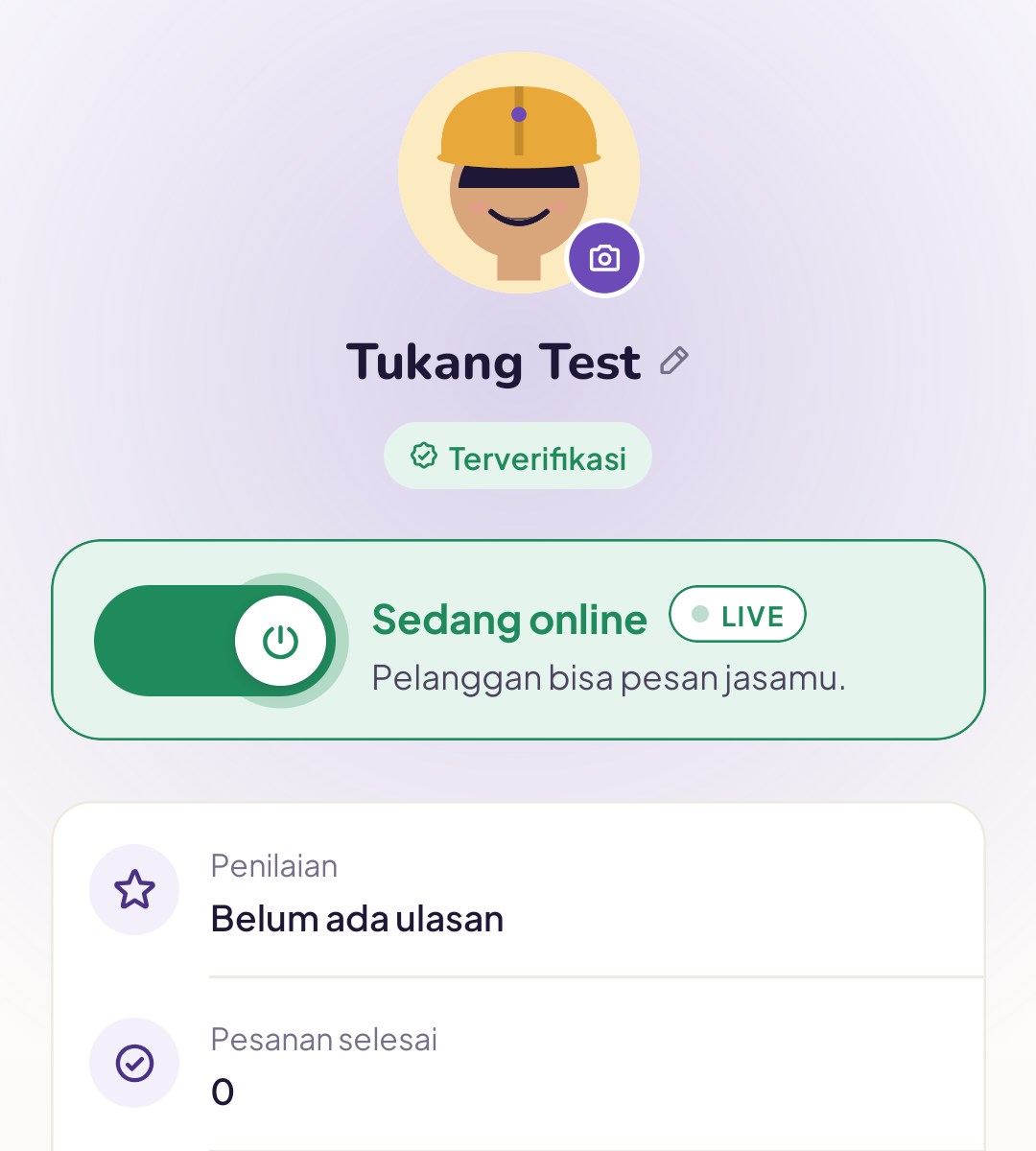
- Verified, you are ready to accept orders.
- Additional info needed, we need a new photo or extra documents. Check the app for details.
- Verification rejected, there is a serious problem. Contact the Yukser team.
Which data is locked?
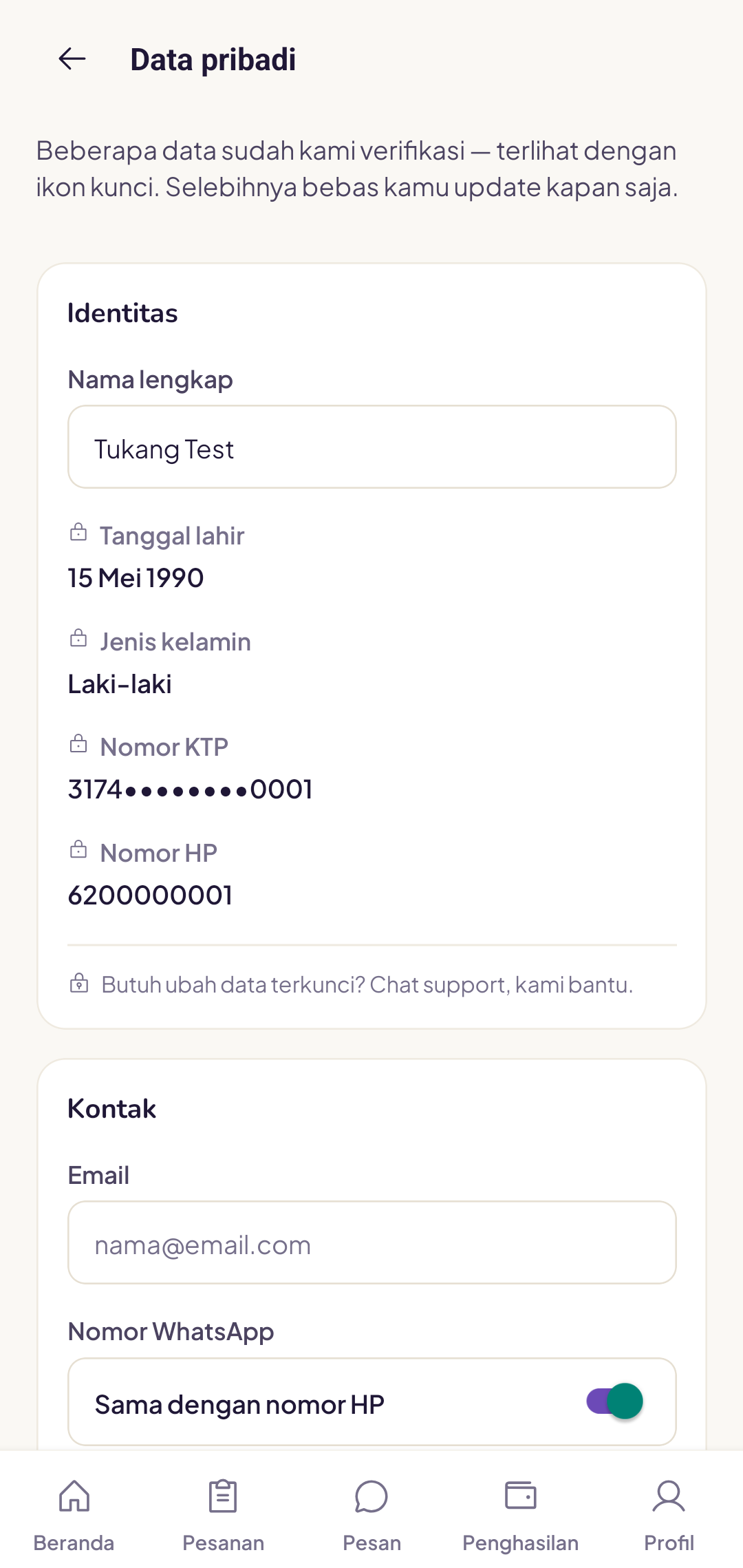
Data we have already verified is marked with a lock icon under Account settings → Personal data, for example your date of birth and KTP number. Everything else you can update at any time. If locked data needs correcting, chat with the support team.
Verification failed, why?
The most common reasons:
- KTP photo is blurry or cropped
- Name on the KTP does not match what you entered
- Selfie is unclear or does not match the KTP photo
- Document appears to be fake
If your status is Additional info needed, simply resubmit through the app. If it is rejected, contact the team to confirm.
KTP photo still not being read?
Sometimes a KTP photo cannot be read automatically, the card has faded, the plastic is reflecting light, or the camera is not sharp enough. That is not your fault.
After several attempts, the app offers the option Enter KTP data manually. You type in your name, NIK, date of birth and address exactly as shown on your KTP; we still save the photo.
What you need to know:
- The Yukser team checks the data you type directly against your KTP photo, so verification may take a little longer.
- Make sure what you type matches the KTP exactly, even one wrong digit will cause verification to be rejected.
- Still unsure? Tap Help on the registration screen, or chat with the Yukser team via WhatsApp.