
Why does Yukser ask for photos after I finish?
When you mark an order as Complete, Yukser invites you to take 1–3 photos of your completed work. These photos:
- Customers can view directly on their order detail page, before they write a review.
- Help build your reputation. Documented results prove the quality of your work and can lead to higher ratings and more bookings.
- Serve as a shared record if there are any questions about the final condition of the work.
How many photos do I need to take?
At least 1 photo, and at most 3 photos. Focus on the final result, for example the repaired spot, the cleaned area or the completed installation. You do not need to include selfies or photos of materials.
How to upload
- After tapping Mark as complete, the app shows the "Photos of your completed work" step.
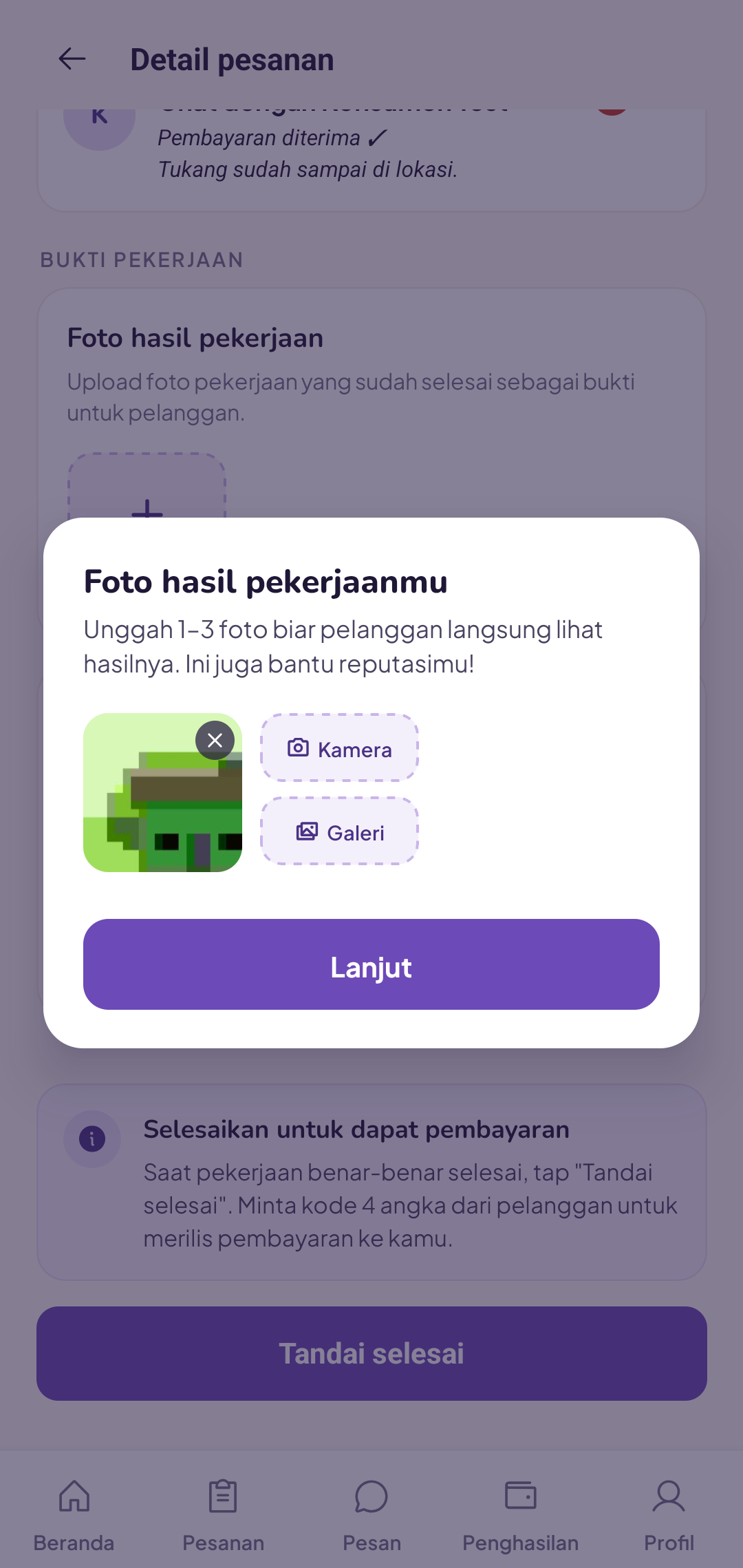
- Tap Camera to take a photo on the spot, or Gallery to choose an existing photo.
- Add up to 3 photos, then tap Continue.
- Customers can immediately see the photos on their order detail page.
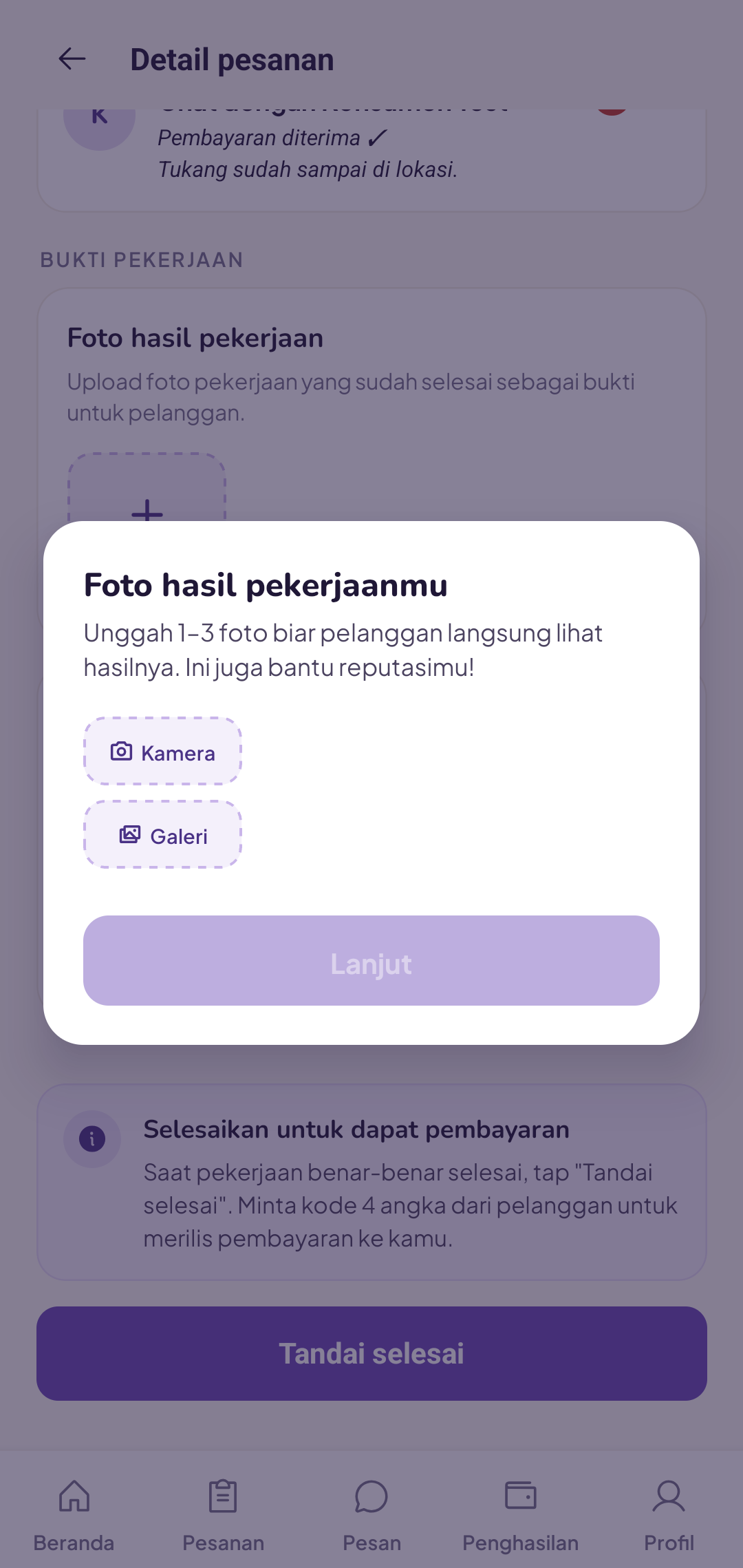
Once the photos are in, the Continue button becomes active and you can move on to the next step.
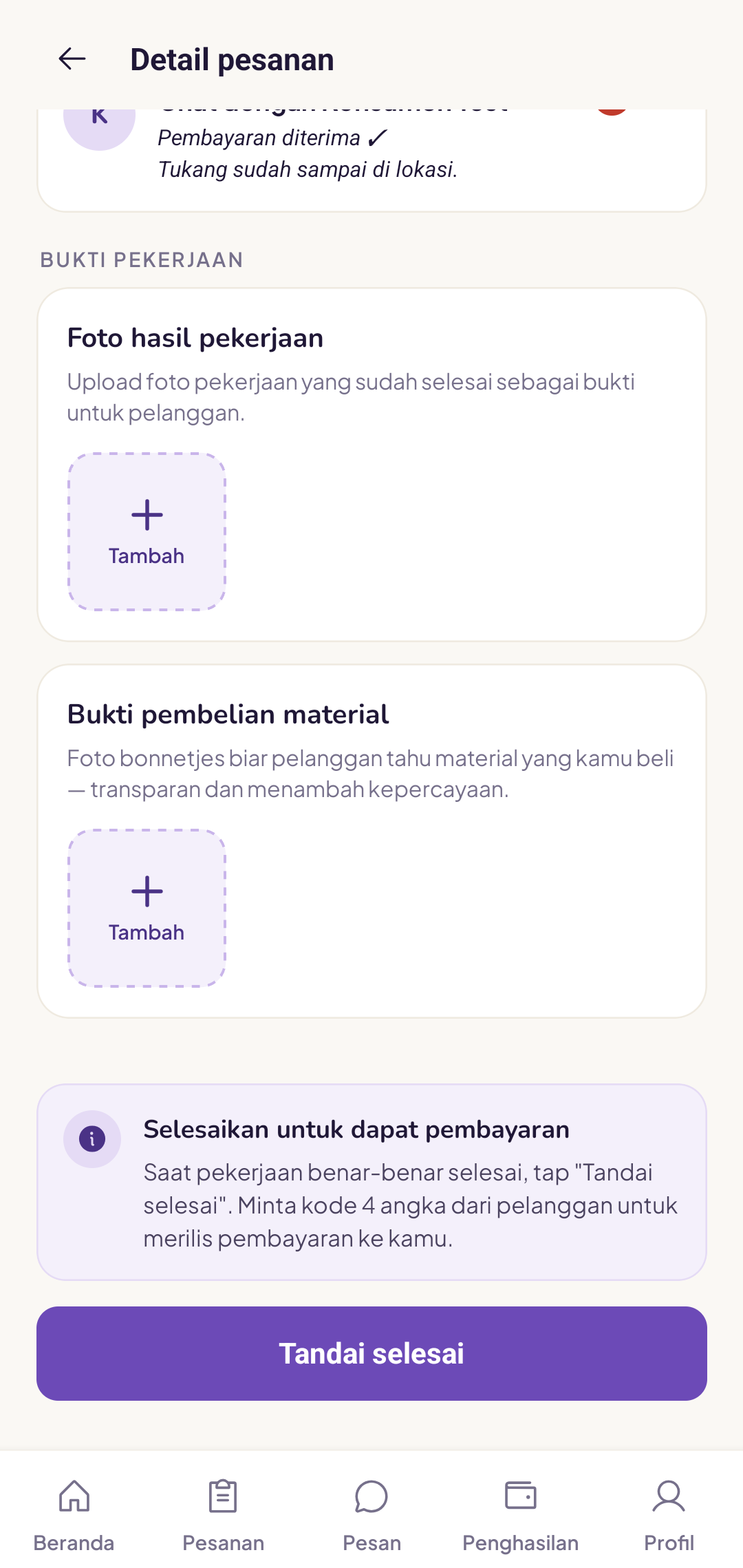
You can also add photos via the Photos of completed work section on the order detail page.
If you need information about the full order completion flow, read [Completing an order](/help/menyelesaikan-pesanan-tukang).
When can you skip photos?
If the photo step is set to optional by Yukser, tap Skip this step and select one of the following reasons:
- Work is not visible - the result is inside a wall, behind a panel or simply cannot be captured in a photo.
- Customer declined - the customer did not allow the area or the result to be photographed.
- Conditions did not allow it - for example, too dark, a restricted area or a camera problem on your phone.
Choose the most appropriate reason, then tap Skip and continue. The order is completed as normal.
What if Yukser requires photos?
When the step is set to required, you cannot complete the order without uploading at least 1 photo. Make sure your phone is working properly before you start the job.
Tips for good photos
- Use enough light: open the curtains or turn on the room lights.
- Shoot from an angle that shows the whole work area.
- Avoid blurry or very dark photos. Clear photos are more reassuring for customers.
Once the photos are submitted, customers will see them and can leave a review straight away. Also read [Ratings you receive](/help/penilaian-yang-diterima-tukang) to understand how reviews affect your profile.